Cameras
Standard IP or USB cameras that see the shelves clearly.
GoTrack runs on the store's cameras and a small device in the store. Here is what that means in practice, step by step.
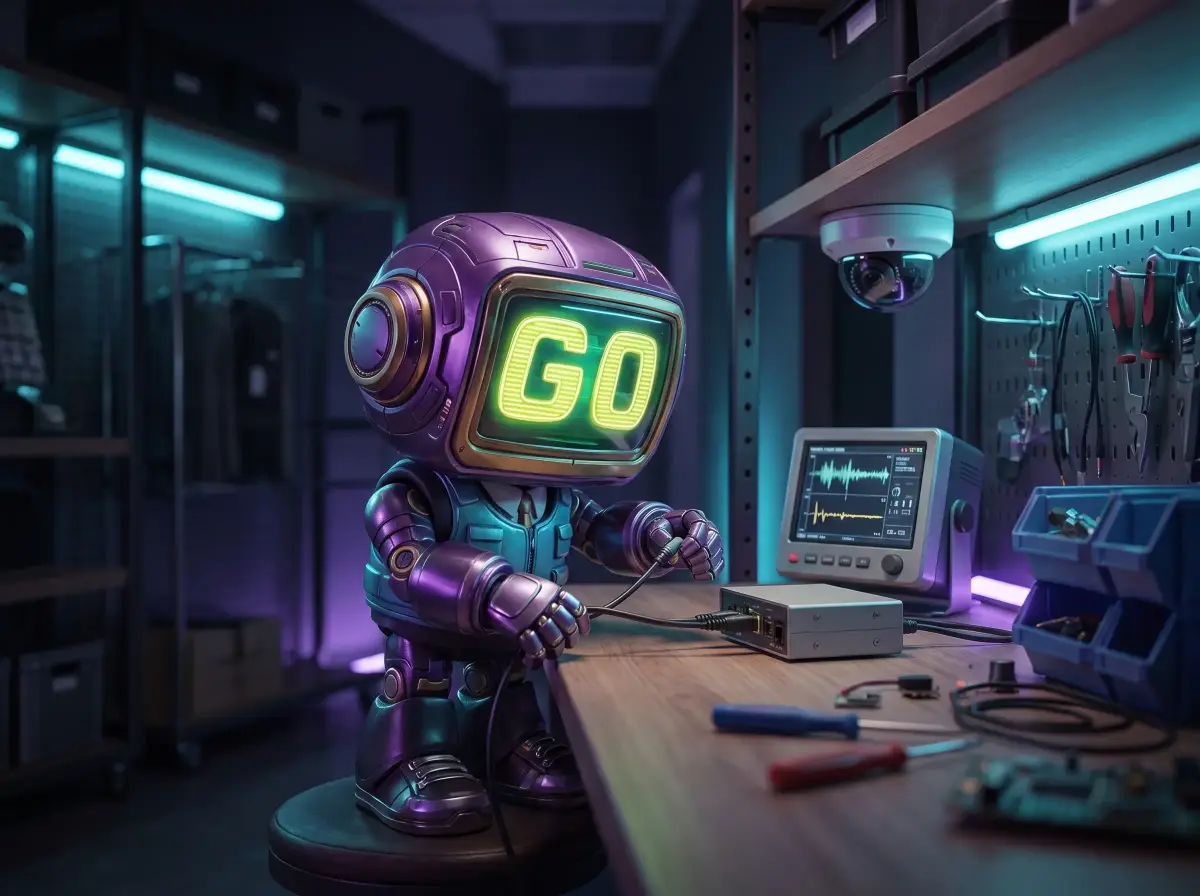
Cameras that see the shelves, a small device in the store, and an internet connection for the panel. Screens are optional. Products are added in the panel, and reports start filling in per product, colour and store.
We look at your store's cameras together. Standard IP and USB cameras work if they see the shelves clearly; where they don't, we suggest where an extra camera should go.
A small device in the store analyses the images. It needs an internet connection for the panel and updates, and keeps working when that connection drops.
Products are added in the panel with a guided step; details can be imported from the product page on your website.
In the panel you mark which shelf areas each camera watches and, where it applies, which products belong there.
Pair ordinary screens from the panel and choose each product's content and the idle playlists.
Pickups, hold time and put-backs appear per product, colour and store. Export them as CSV or PDF, or send events to your systems by webhook.
Standard IP or USB cameras that see the shelves clearly.
A small device in the store that processes the images.
Ordinary screens; no touchscreen required.
Usually. IP cameras with RTSP, ONVIF cameras, HTTP streams and USB cameras are supported. The camera must see the shelf; if an existing camera does not, an extra camera may be needed.
Recognition, screens and event recording carry on in the store. Screens play their stored content, and events wait on the device and are sent with their real times when the connection returns.
Remotely. New versions reach store devices without a site visit, are applied at a quiet moment, and roll back on their own if the new version does not work.
Cameras that see the shelves (standard IP or USB), a small device in the store that processes the images, and an internet connection for the panel and reports. Screens are optional. The panel is used from a web browser.
Tell us about your stores and we will start with the cameras you already have.
or write to info@gotonom.com